

Short answer: Upgrading to Odoo 19 is a test-first project. Confirm which hosting you use (Odoo Online, Odoo.sh or on-premise), check every custom module and integration against the new version, upgrade a copy of your database, and only then switch production. Most of the risk sits in custom code and in reports your team and CA rely on. Vayasoft is an official Odoo Ready Partner based in India. We run upgrades for existing Odoo users. This guide sets out the steps; it does not replace Odoo’s own documentation.
What changes for users
The Odoo 19 release notes cover changes across every app. Read the sections for the apps you use, because the list is long. Two India accounting changes are worth checking first:
- GST reporting (GSTR-1): supply types are locked on posting and stored on journal items, and invoices can be filtered for reconciliation.
- TDS and GST returns: a detailed TDS report can be generated in one click, TDS section and rate are detected automatically, and the GST return process has been simplified.
Source: Odoo 19 release notes, read on 12 November 2026. Your users may see new screens and menu changes, so plan a short training session before go-live.
Your upgrade options
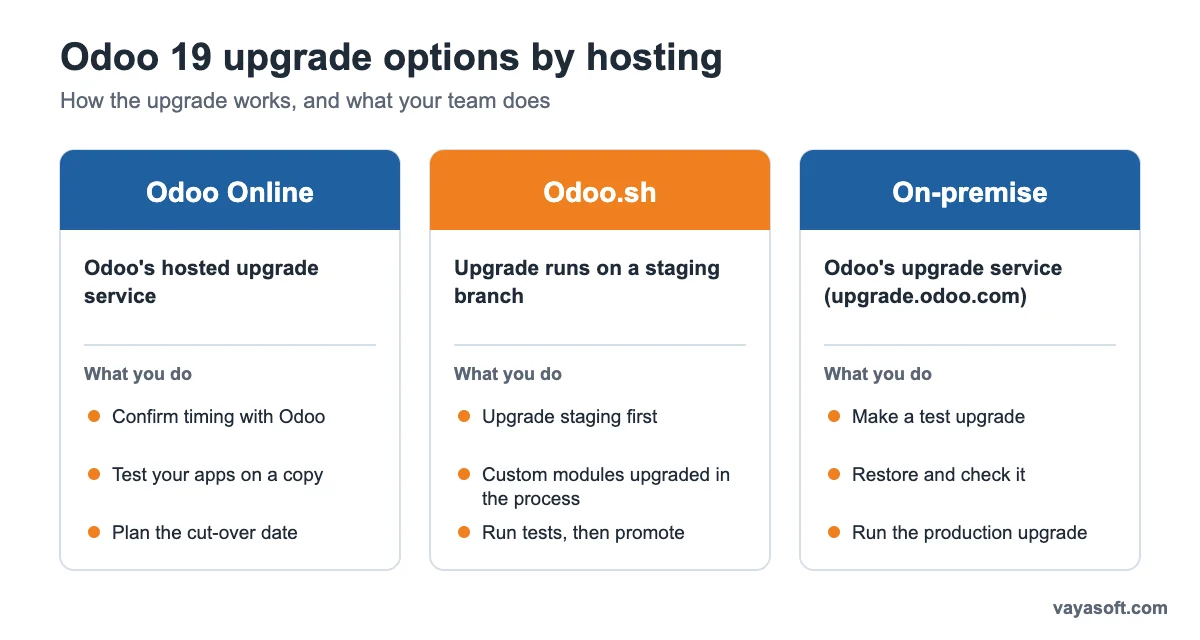
| Hosting | How the upgrade works | What you do |
|---|---|---|
| Odoo Online | Upgraded through Odoo’s hosted service | Confirm the timing and steps with Odoo before you plan the cut-over, and test your apps on a copy first |
| Odoo.sh | Upgrades run on your staging branch, and custom modules are upgraded automatically as part of the process | Upgrade the staging branch, run your tests, then promote to production |
| On-premise | Upgraded with Odoo’s upgrade service at upgrade.odoo.com, which offers a command-line tool and an upload form | Make a test upgrade, restore and check it, then run the production upgrade |
On-premise steps, as set out on upgrade.odoo.com, read on 12 November 2026:
- Create a database dump. The page suggests
pg_dump -F c. - Submit it with your Enterprise subscription code, the target version and the purpose (Testing or Production). You can also run the upgrade from the command line on the database host.
- After a successful test upgrade, download the upgraded dump, restore it and test every workflow.
- Run the production upgrade within 3 days of the test upgrade, then restore the upgraded dump and point Odoo to it.
What happens to custom modules
Custom modules are where most upgrades slow down. Odoo’s upgrade page says the Odoo.sh process includes automatic custom module upgrades. For on-premise databases, the page does not describe custom module handling, so plan that work yourself:
- List every custom module, its author and its dependencies.
- Check each module against Odoo 19 changes in the release notes and the developer documentation.
- Port the code that breaks, and remove code for features now built into Odoo.
- Re-test each module with real data, not only in a blank database.
- Keep a record of what you changed. Your next upgrade will need it.
Third-party modules need their vendor’s Odoo 19 version. If the vendor has not released one, decide whether to wait, replace the module or rebuild it.
Step-by-step checklist
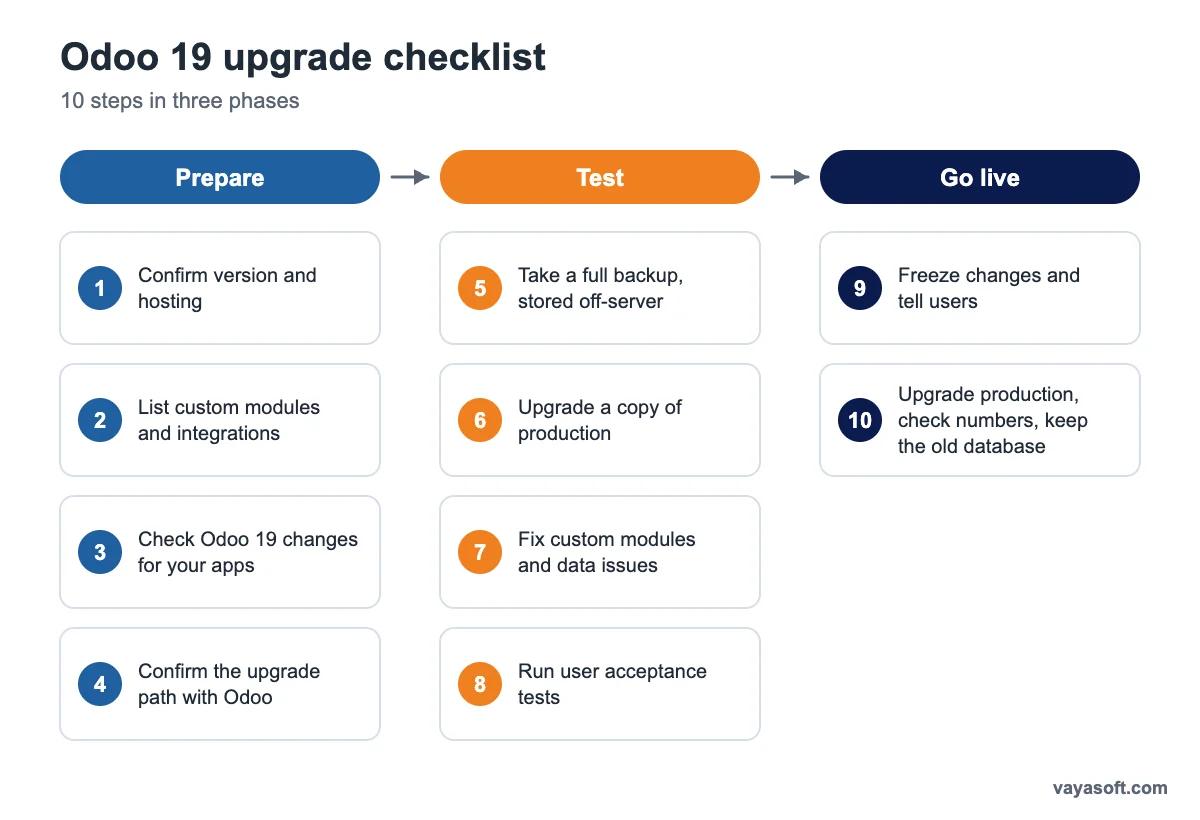
- Confirm your current version and hosting. Note your database name, version, and whether you run Odoo Online, Odoo.sh or on-premise.
- Inventory custom modules and integrations. Include payment gateways, e-invoicing, shipping, WhatsApp and bank feeds.
- Check Odoo 19 changes for the apps you use. Read the release notes for each one.
- Confirm the upgrade path for your database with Odoo before you plan dates.
- Take a full backup and store it outside the server.
- Upgrade a copy. Run the test upgrade on a copy of production.
- Fix custom modules and data issues found in the test.
- Run user acceptance tests with the people who use each process daily.
- Freeze changes in production for the cut-over window, and tell users.
- Upgrade production, check key numbers, and keep the old database for a set period in case you need to roll back.
Testing tips
- Test with a recent copy of real data, not demo data.
- Test end to end: quotation to invoice, delivery, payment, and the month-end close.
- Compare totals before and after: sales, stock value, receivables, payables and tax.
- Have your CA check GST and TDS reports against last month’s filed figures.
- Test printed invoices, reports and emails, because layout changes are easy to miss.
- Test integrations with real sandbox credentials, and check scheduled actions and cron jobs.
- Record every issue in one list with an owner and a status.
Frequently asked questions
Can I upgrade from Odoo 17 or 18 straight to Odoo 19?
Confirm this for your database with Odoo’s upgrade service or your hosting provider. The upgrade path depends on your version and hosting, so do not assume it.
How long does an Odoo 19 upgrade take?
The upgrade itself can be quick. Testing and custom module work take most of the time. A small database with few custom modules takes weeks. A large one with many integrations takes longer.
Will my custom modules work after the upgrade?
Not without checks. Some will need code changes. Test each module on a copy of your database before you upgrade production.
Do I need to stop using Odoo during the upgrade?
Production needs a short freeze, from the final backup to the switch. Plan the window for a quiet period, such as after month-end close.
Can I roll back if the upgrade fails?
Keep the old database and your backup until the new system has run for a set period. Rolling back after users have entered new data is harder, so decide on a cut-off point in advance.
Should I upgrade on my own or with a partner?
Upgrades with many custom modules or integrations usually benefit from a partner’s help. Ask for a fixed plan, test results and a rollback plan before you agree to a date.
For a fixed-scope upgrade, see our Odoo upgrade service. For ongoing help after go-live, see our Odoo support plans.
Talk to Vayasoft
Planning an Odoo 19 upgrade? Book a free call at https://vayasoft.com/book-a-consultation/ and we will review your modules, hosting and timeline with you.
About Vayasoft: Vayasoft is an official Odoo Ready Partner based in India. From our offices in Pune and Indore, we implement, customise, upgrade and support Odoo for manufacturing, distribution, solar EPC, retail and service businesses, and we publish our own apps on the Odoo App Store.